An AI team can do real things: put a page live, email your customers, buy a domain. The question that matters is not whether it can, but who decides. In equipe, you do, through short cards that ask before anything important happens.
This article explains what an approval card is, how to read one in a few seconds, what the buttons mean, and how to keep approving useful instead of tiring. It is written for people who do not code, and most of it applies to any AI tool that asks for your permission.
The short answer. An approval card is a short message that asks you to decide before the AI team does something that goes live, costs money, reaches customers or deletes. It states the ask, the options, a recommendation and the expected cost, and you answer with one tap. Declining is safe: the work simply stays out of your product.
What an approval card is
Think of a manager who asks you to sign off before an expense or a press release. The card is that sign-off request, shaped so you can answer fast.
In equipe, the team works from a shared board of tickets and does most things on its own. A few categories always wait for you: publishing, sending messages, purchases and deletions. Anything that goes live, costs money or reaches customers waits for your approval. This is a rule of how the team works, not a setting you have to remember to turn on.
Cards are not the only safeguard. Each member also works in its own copy of the project, and nothing merges into the main product until you say so. The card is the moment you say so. For the wider picture, see Is equipe safe? Data, money and approvals.
Anatomy of a card
A good card has five parts. Look for each one.
| Part | What it tells you | Why it matters |
|---|---|---|
| The ask | What exactly will happen if you say yes | If you cannot say it in one sentence, ask for a clearer card |
| The options | Usually more than yes or no, such as a smaller version | You are choosing a path, not rubber-stamping |
| The recommendation | What the PM suggests and why | A starting point, not an order |
| The expected cost | Money or team time the action will use | The number to compare with your monthly cap |
| One tap | The answer itself | Deciding should take seconds, not a meeting |
The recommendation comes from the PM, the AI role that asks questions first, turns your idea into a plan and brings you only the decisions that are yours. The cost is shown before anything runs. You also set a monthly cap and can see what you have spent this month and the expected total at month end.
The kinds of cards
The categories below are the ones equipe says always wait for approval. The wording of an actual card will differ.
- Publish. Put a new version live. Ask what changes for a visitor, and whether you saw it in a preview link first.
- Send a message to customers. An email or notice that reaches real people. This one cannot be recalled, so read the actual text.
- Buy a domain. A purchase with a stated price. See the section on domains below.
- Spend. A cost beyond what you have already agreed to. Check it against your monthly cap.
- Delete. Removing data or something you built. Ask what exactly disappears and whether you can download it first.
How to read a card well
You do not need technical knowledge to answer most cards. You need five questions. Treat them as advice, not as a rule from us.
- What exactly changes, and for whom? A visitor, a customer, only you?
- Can it be undone? Publishing a page is easier to reverse than emailing everyone. Treat irreversible actions with more care.
- What does it cost, and is that inside my cap? Compare the expected cost with what you planned.
- Why this option? If the recommendation is not clear, ask the PM to explain it in plain words before you tap.
- Is this the smallest version? Ask for a smaller first step when a card feels large.
If you cannot answer the first two, do not approve yet. Replying with a question costs you a minute. A wrong approval can cost much more.
The buttons in the app: Allow once, Always, Deny, Reply
The screenshot below is the “Needs you” inbox of the equipe app, shown with demo data, not a real business. In the inbox, a request waits until you answer.
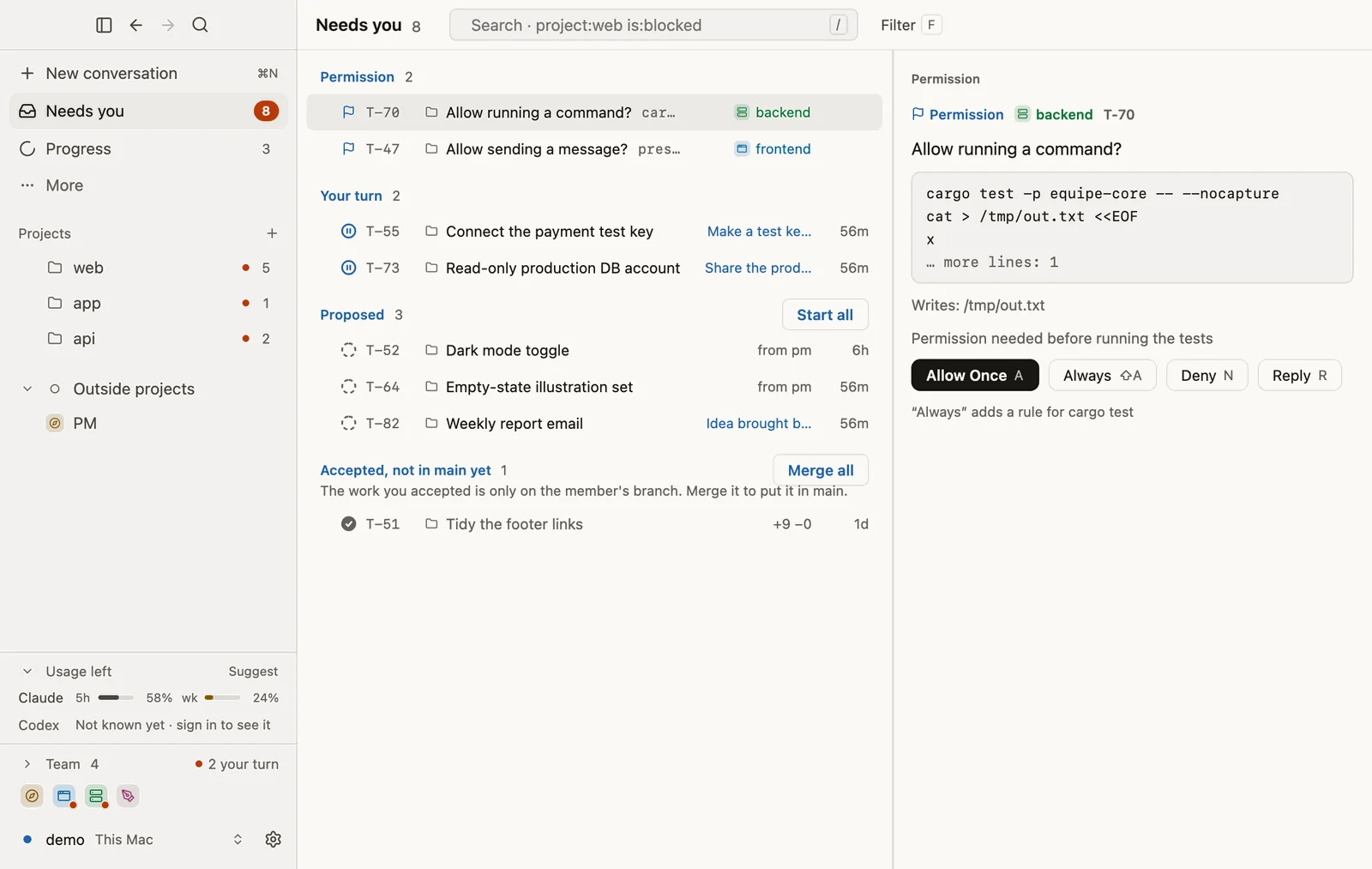
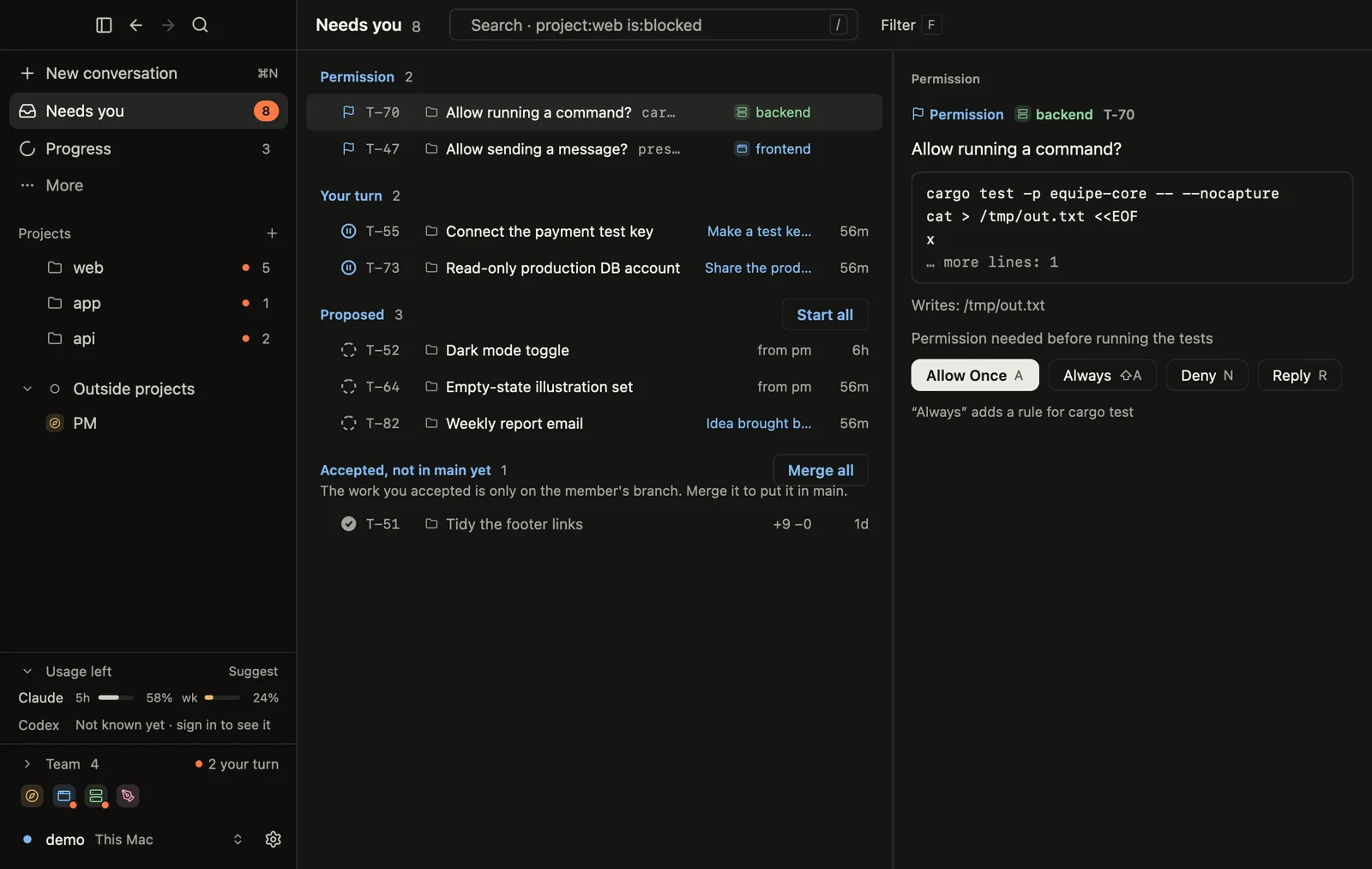
- Allow once approves this single request. The next similar request asks again.
- Always adds a rule for that one command, so that command stops asking. It does not turn approvals off in general. Pick it only for a command you understand and would be comfortable allowing every time.
- Deny says no. The request does not go ahead.
- Reply lets you answer in your own words instead of choosing a button, for example to ask a question or ask for a change. Use it whenever the card is nearly right.
When in doubt, choose Allow once, Deny or Reply. Always is a convenience, so keep it for later, once you know a command well.
How a domain purchase is approved
Buying a domain shows the approval rules in their strictest form. The team cannot buy a domain by itself.
- The team asks. The request shows the domain and its price.
- It links to an approval page that only a signed-in member of your team can open.
- The purchase is allowed only if it is approved, not expired and not above the approved price.
- One approval buys once. Approving a domain does not authorize a second purchase.
Domains are billed at cost, in credits. Our guide to buying and connecting a domain walks through the whole process.
What happens if you decline
Declining is always safe. Nothing goes live, nothing is bought and nobody is messaged. The work stays out of your product, and nothing merges into it without your say. After a no, you have three useful moves:
- Ask the PM why it proposed the change.
- Ask for a smaller version, or a different option.
- Tell the PM what you would approve, using Reply.
A no is information for the team, and a plain reason is more useful than silence. If you think something is actually broken or unsafe, write to support@equipe.im with what you saw.
Approval fatigue, and how to avoid it
If you tap yes on everything without reading, the card stops protecting you. That is called approval fatigue, and it is a known problem with any system that asks often. We do not have data on how many cards a typical person sees, so what follows is general advice, not a claim about equipe.
- Read the ask line, not the whole card, every time. Cost and the ask line take seconds.
- Batch your review. Check the “Needs you” inbox at set times rather than reacting to each ping.
- Ask for fewer, bigger decisions. Tell the PM what you care about, so it brings you choices, not chores.
- Use Always sparingly. A rule you add today applies tomorrow, when you may not remember why you added it.
- Slow down on the irreversible. Messages to customers and deletions deserve your full attention.
- Say no sometimes. If you never decline, you are not deciding.
Where equipe fits
Cards suit people who want a team to do the work while they keep the final say. If you would rather click through every step yourself, or you need audit paperwork for a company, equipe may not be the right fit yet; we do not claim SOC 2 or ISO 27001, and we have not published a backup or uptime commitment. The cards are one layer of protection, not a promise that the AI is never wrong. That is why QA checks work before it reaches you, and why you should still read what you approve.
The iPhone app, “equipe — AI squad”, lets you approve with Face ID, so a card does not need a laptop.
Where to go next
If you are new to the idea of an AI team, read what an AI startup team actually does. For the full safety picture, including secrets, isolation and deletion, see Is equipe safe? And if you are evaluating any tool, our security checklist for non-coders gives you fifteen questions to ask.